Customer support escalation process flowchart
This swimlane diagram shows how a customer support ticket moves from the customer to first-line support and, when needed, to engineering. It is for support, operations and IT managers and team leads who need to document ticket escalation, clarify who owns each step, and find where SLAs slip.
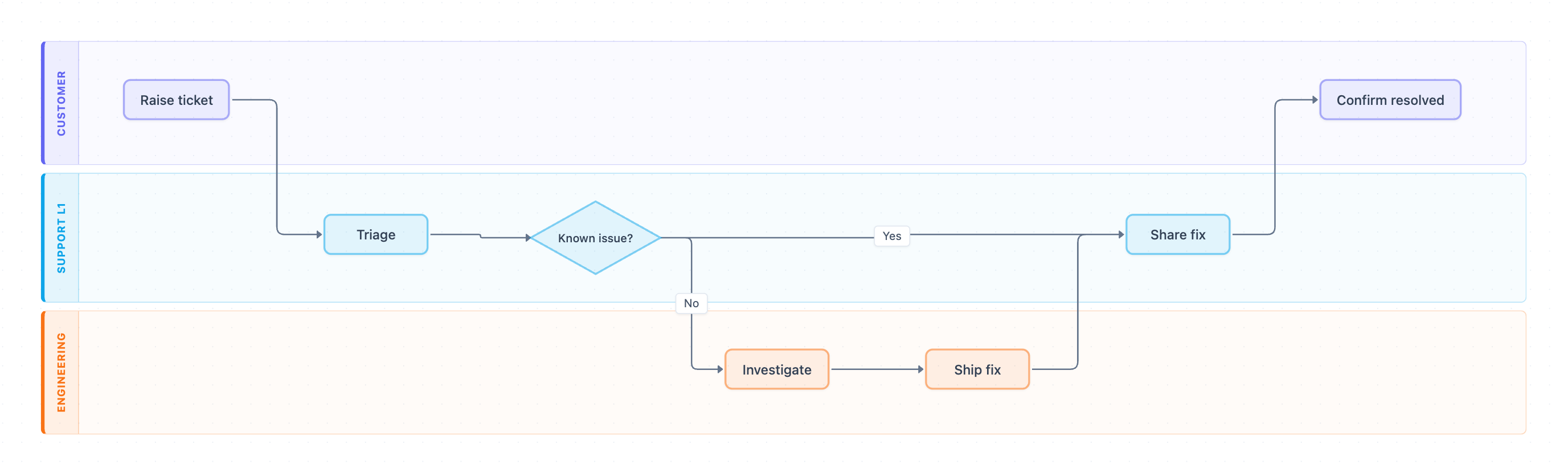
Example: Swimlane diagram for customer support ticket escalation: click to open it in the editor and change it.
Lanes and roles
| Lane (role) | Steps it owns |
|---|---|
| Customer | Raise ticket, Confirm resolved |
| Support L1 | Triage, Known issue? decision, Share fix |
| Engineering | Investigate, Ship fix |
Steps, decisions and hand-offs in order
- Customer completes Raise ticket. This is the first hand-off, from Customer to Support L1.
- Support L1 performs Triage on the incoming ticket.
- Support L1 answers the decision Known issue?
- If Yes, Support L1 goes straight to Share fix.
- If No, the ticket is escalated to Engineering for Investigate. This is the key escalation hand-off.
- Engineering completes Ship fix, then hands back to Support L1 for Share fix.
- After Share fix, the Customer completes Confirm resolved, which ends the process.
Support L1 owns the customer conversation from start to finish. Engineering never contacts the customer directly in this flow; every fix goes back through Share fix.
Where this process usually slows down
- Triage and Known issue?: if L1 has no up-to-date list of known issues, it may escalate tickets that it could have solved.
- The No hand-off to Investigate: tickets can sit in an engineering queue with no clear owner or response SLA.
- Ship fix to Share fix: if nobody tells L1 that a fix has shipped, the customer waits even though the problem is solved.
- Confirm resolved: the diagram has no path for a customer who says the fix did not work, so these exceptions get handled informally.
How to adapt it for your project
- Rename the lanes to match your org, for example split Support L1 into L1 and L2, or add a Product or Account Manager lane.
- Add your SLA targets beside Triage and Investigate, and name the owner for each step.
- Add approval steps where your company needs them, such as manager sign-off before a hotfix or a priority or severity check that decides when to escalate.
- Add a "No" branch after Confirm resolved that loops back to Triage for reopened tickets.
- Open and edit it to match your ticketing tool's statuses.
Tip: Put a timestamp on every arrow that crosses a lane. Hand-offs between lanes are where most SLA time is lost, so measure those first.
Frequently asked questions
What are the steps in a customer support escalation process?
In this diagram the steps are Raise ticket, Triage, the Known issue? decision, then either Share fix directly or Investigate and Ship fix in Engineering, then Share fix and Confirm resolved.
Who is involved in support ticket escalation?
Three roles appear as swimlanes: the Customer, Support L1 and Engineering. Support L1 owns triage and all customer communication, and Engineering handles issues that are not known.
When should a ticket be escalated to engineering?
In this flow, a ticket is escalated when Support L1 answers "No" to Known issue? after triage. Many teams add severity or SLA rules to make this decision clearer.
Make your own swimlane diagram with AI →