Password reset sequence diagram
This sequence diagram shows a standard forgot-password flow between four participants: the **User**, the **Web App**, the **Auth Service** and the **Email Service**. It traces the messages from the first click to the confirmation that the password has changed. It suits developers designing an auth flow and students learning sequence diagrams.
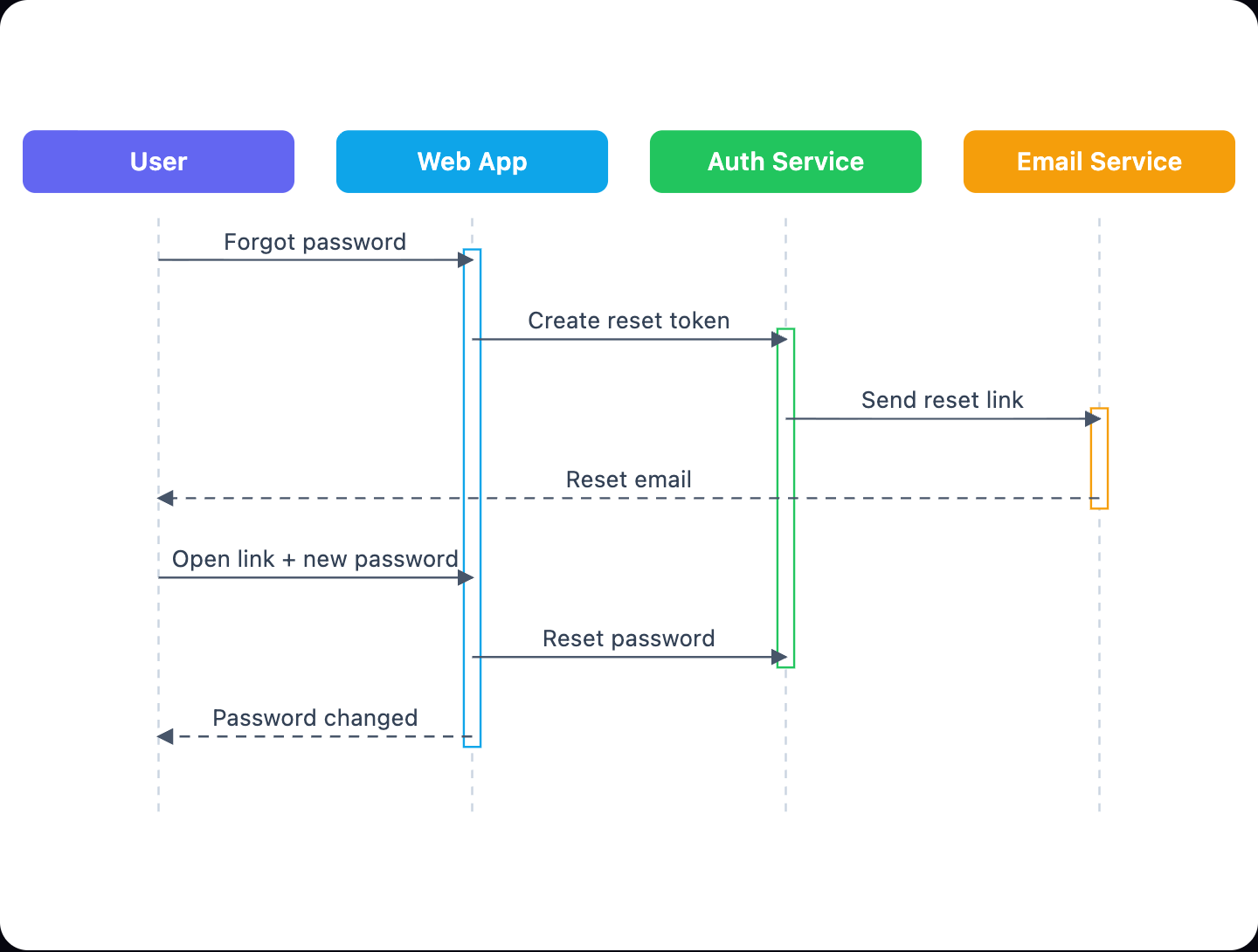
Example: Sequence diagram for password reset: click to open it in the editor and change it.
The messages in order
- User → Web App: Forgot password.
- Web App → Auth Service: Create reset token.
- Auth Service → Email Service: Send reset link.
- Email Service → User: Reset email.
- User → Web App: Open link and enter a new password.
- Web App → Auth Service: Reset password.
- Web App → User: Password changed.
Why it is designed this way
- Only the Auth Service creates and checks the reset token, so the web app never handles passwords directly.
- The link goes by email, which proves the user owns the account's email address.
- The reset happens in a second request, after the user opens the link.
How to adapt it for your app
- Add a token expired? alt box with an error reply.
- Show the token being stored and deleted after use.
- Add a reply that always says "if the email exists, we sent a link", so attackers can't discover which emails are registered.
Tip: Keep reset tokens single-use and short-lived, for example 30 to 60 minutes.
Frequently asked questions
Who are the participants in a password reset sequence diagram?
Usually the user, the web app, an auth service that creates and checks the token, and an email service that sends the link.
Why is a reset token used?
It proves the request came from someone with access to the account's email, without sending the password itself.
How do I show an expired link?
Add an alt fragment after the user opens the link: valid token resets the password, expired token returns an error.
Make your own sequence diagram with AI →